dsh-workspace-explorerDeepSeek Harness plugin
DeepSeek Harness 工作区文件资源管理器:右侧目录树面板,点击/拖拽文件引用进输入框,UI 对齐 DSH 原生风格 | Workspace file explorer plugin for DeepSeek Harness: right-side file tree panel, click or drag file references into the composer, native DSH look
- Stars
- 17
- Forks
- 0
- License
- MIT
- Last commit
- Aug 25, 2026
- Latest release
- v0.6.3
Overview
DeepSeek Harness 工作区文件资源管理器:右侧目录树面板,点击/拖拽文件引用进输入框,UI 对齐 DSH 原生风格 | Workspace file explorer plugin for DeepSeek Harness: right-side file tree panel, click or drag file references into the composer, native DSH look
Original README
Cached from the project repository on Sep 3, 2026. This is source content, separate from the Agents.md review above.
dsh-workspace-explorer






⭐ If you find this useful, give it a Star — it makes the author's day · ★ Give a Star
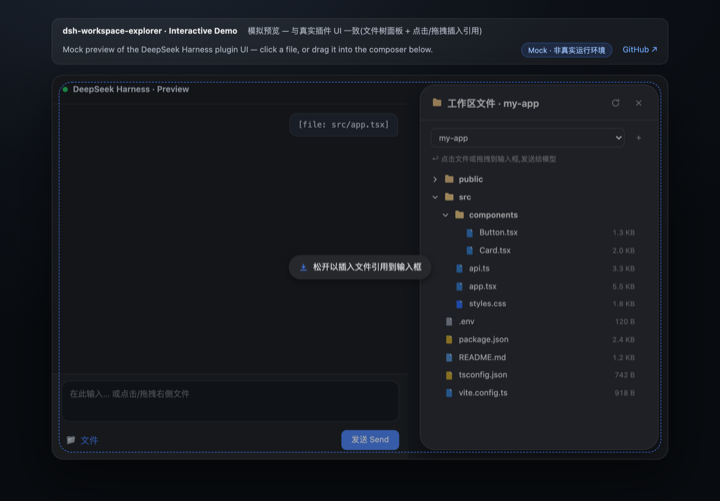
A workspace file explorer for the DeepSeek Harness Web UI: a “Workspace Files” capsule button in the session header (feature name + folder icon, beside the Session log button) opens an animated popup showing the current workspace's directory tree — click or drag a file to send its reference to the model.
Inspired by the VS Code / Cursor project tree, filling the gap of a missing directory view in DSH after workspaces are added.
🖥 Demo
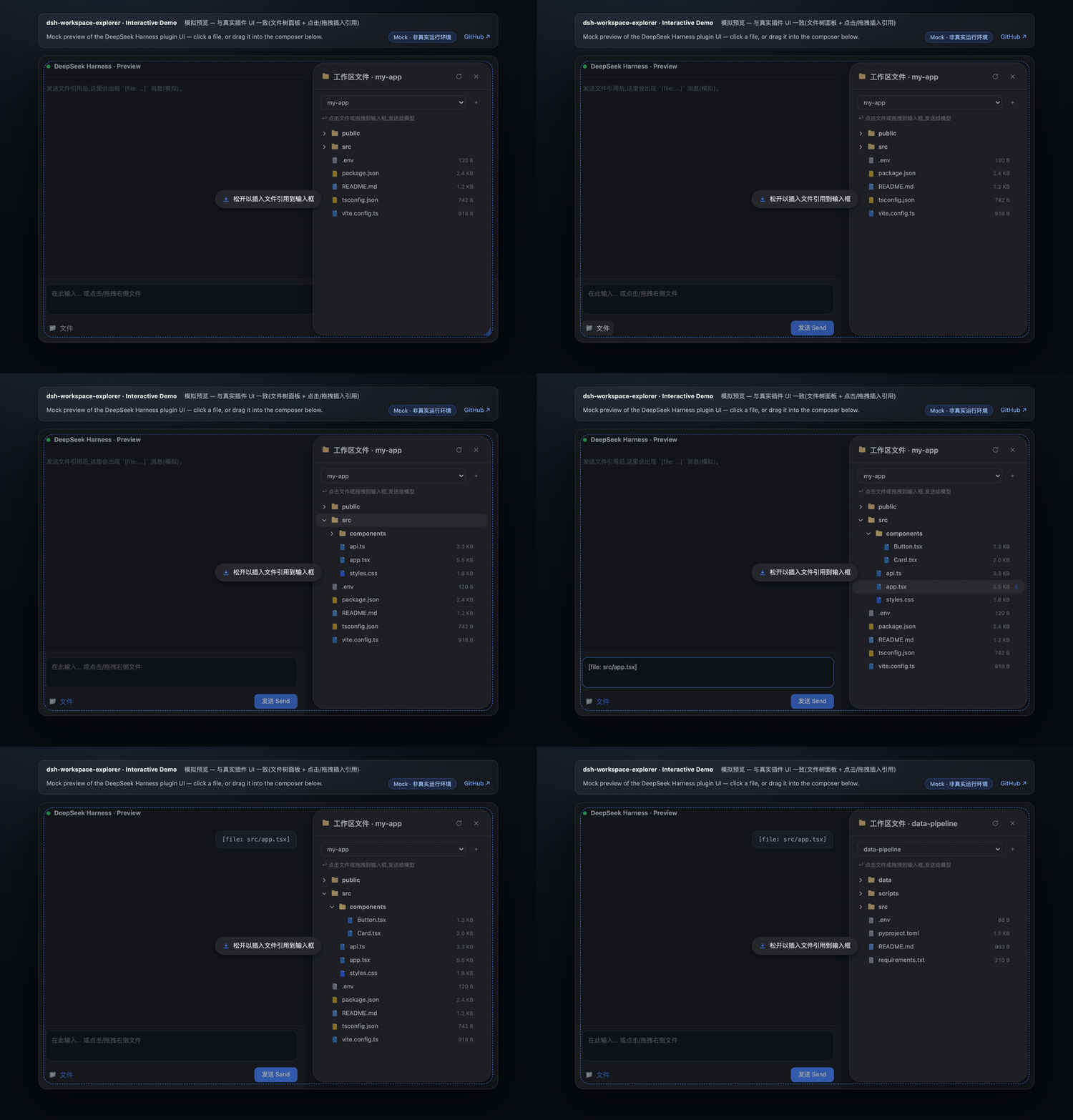
Demo GIF (recorded at v0.5.1): the “Workspace Files” pill entry, multi-select batch insert, folder drag → compact tree text, paginated preview, and the settings tab. The v0.6.0 split-view preview and file editing are shown in the screenshots below.
Screenshots · 截图
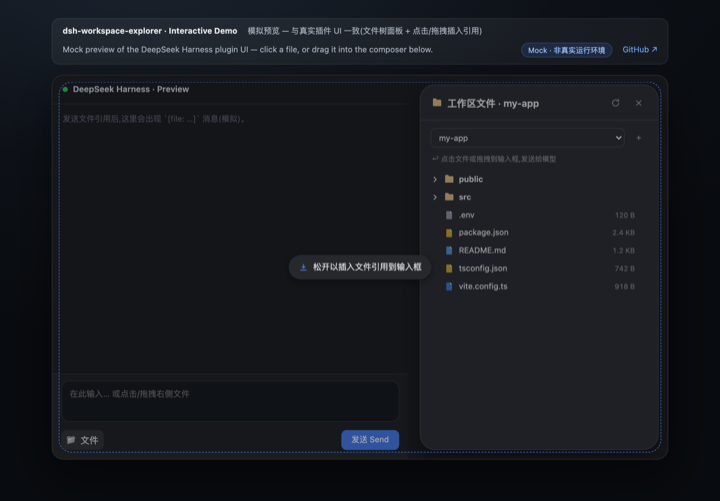
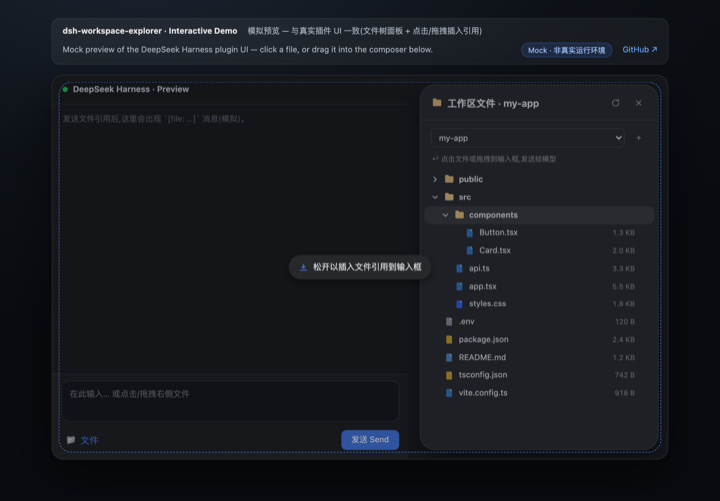
Features
- 📂 Animated popup — a “Workspace Files” capsule button (feature name + folder icon, same style as the native Session log download button) sits in the session header and opens a floating panel with a spring-like fade/scale-in animation; the popup is measured live to sit between the session header and the composer (the chat area's right side), so it never covers the input box
- 🗂 Top tab bar — click at the top of the panel to switch between Files and Settings; the Settings page tunes behavior live (hide noise dirs, show sizes, reference format, preview lines, panel width) and mirrors into DSH Settings → Workspace Explorer
- 🗂 Lazy-loading tree — directories load on demand; noise dirs (
node_modules,.git,dist,__pycache__, …) are hidden automatically - 🎨 File-type icons — filled, color-coded document badges per extension (TS / JS / Python / JSON / Markdown / image / config / shell, …); amber folders that brighten when expanded
- 🖱 Click to insert — click a file row to append a
[file: relative-path]reference to the composer; after sending, the model resolves it with itsreadtool - 🖱 Drag & drop — drop a file into the composer to insert at the caret (fullscreen dashed hint); dropping elsewhere appends to the end. Folders are draggable too — dropping a directory inserts a depth-limited compact tree listing
- 🖱 Multi-select & batch insert — Shift / ⌘ click to select multiple rows, then insert all of them at once (files → references, folders → tree listings)
- 🌓 Theme-aware — built entirely on DSH's
--dsw-alias-*design tokens; adapts to light/dark with a native dialog look (16px radius, lv3 shadow) - 🔍 Search & filter — filter files by name across loaded directories (flat result list with a match count)
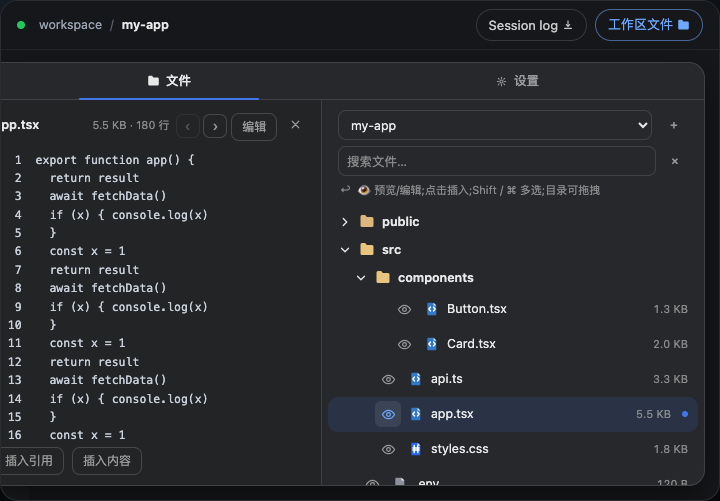
- 👁 Paginated preview — preview any text file with prev/next line paging (total lines & current page shown); insert the reference, or paste the full content for small files (≤ 32 KB)
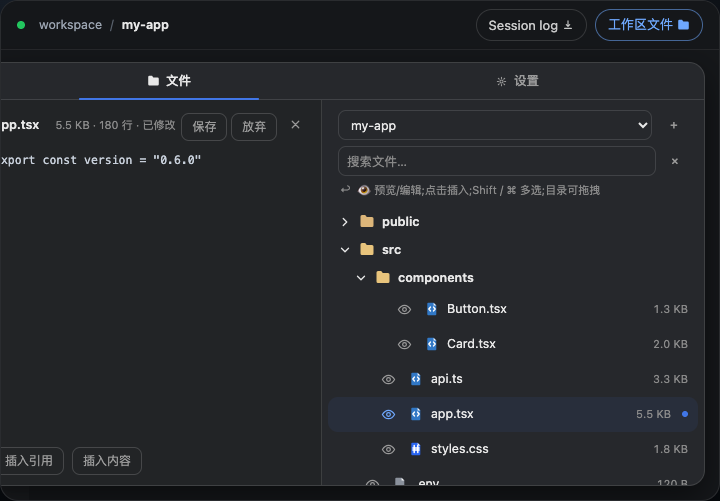
- ✏️ Split view preview — click the 👁 icon before any file to open a 340px left-side preview panel; the file tree stays visible on the right for easy navigation
- 📝 File editing — click "Edit" in the preview panel to enter textarea mode; save writes directly to disk with change detection (warns if the file was modified externally)
- 🌐 i18n — zh/en dictionaries registered through DSH's locale service; the panel follows the DSH UI language
Quick Start
Installation & usage
Way 1 · Native install via dsh plugin add / storefront (recommended)
One command installs the full plugin — no build step, no config changes. The npm package ships a native host half (lib/index.js, webServer JSON routes incl. /dsh-we/api/config) and a browser bundle (lib/client.js via dsh.plugin.json).
bashdsh plugin --profile web add -w @jiyr0119/dsh-workspace-explorer@latest
(or click the install button in the DSH market). After install, a “Workspace Files” pill (name + icon) appears in the session header; restart or hard-refresh the web UI if needed. This is the zero-config, no-build path.
Way 2 · npm source package (manual paste)
npm install @jiyr0119/dsh-workspace-explorer — the package ships dynamic/host.js / dynamic/client.js for the manual paste flow below, with semver releases.
Way 3 · Dynamic plugin paste (zero-build fallback) A dynamic Cordis plugin: no build step, no config changes — useful for quick experimentation or environments without the storefront.
- In the DSH web UI, have an agent run
cordis_define(or use the dynamic plugin panel) withidPrefixwsex. - Paste the whole
dynamic/host.jsinto Host code. - Paste the whole
dynamic/client.jsinto Client code. cordis_runto activate; authorize on the Run card when it first appears.- Click the “Workspace Files” pill (name + folder icon) in the session header → expand directories → click a file, or drag it into the composer, then send.
ℹ️ pnpm note: modern pnpm (9/10) refuses to add a dependency at the workspace root (
ERR_PNPM_ADDING_TO_ROOT), hence the-wflag above. Alternative: create~/.dsh/profiles/web/.npmrccontainingignore-workspace-root-check=true.
⚠️ Common misconception: a listing alone never auto-installs anything — users still click install. With Way 1 the full UI now appears after install (native bundle, v0.4.0+ verified with a clean
dsh plugin add— no boot errors).
See docs/install.md for details.
Usage
- Click the “Workspace Files” pill (feature name + folder icon) at the top right of the session header, beside the Session log button, to open the popup.
- Expand directories to browse files.
- Click a file, or drag it into the composer, then send.
- Use the Settings tab at the top of the popup (or DSH Settings → Workspace Explorer) to adjust panel behavior.
Project Structure
dsh-workspace-explorer/
├── README.md             # Docs — English (default)
├── README.zh.md          # Docs — 中文
├── LICENSE               # MIT
├── CHANGELOG.md          # Release notes
├── manifest.json         # Plugin metadata
├── package.json          # Repo metadata (not an npm package)
├── demo/
│   ├── index.html        # Interactive mock preview (GitHub Pages)
│   └── preview.gif       # Demo animation (README)
├── .github/
│   └── workflows/
│       └── pages.yml     # Deploy demo/ to GitHub Pages (manual; preview hidden)
├── docs/
│   ├── install.md        # Install guide
│   ├── native-package.md # Native DSH package roadmap (upstream PR sketch)
│   └── publish.md        # Publishing workflow (GitHub + npm)
├── src/
│   ├── index.ts          # Native host half: webServer JSON routes (/dsh-we/api/*)
│   └── client/
│       └── index.tsx     # Native client half: popup + tree + icons + drag & drop
├── dynamic/
│   ├── host.js           # Dynamic paste host half: fs listing + ws-tree.* RPC
│   └── client.js         # Dynamic paste client half: popup + tree + icons
└── lib/                  # Built artifacts (lib/index.js + lib/client.js)
Implementation Notes
| Capability | Mechanism |
|---|---|
| Directory listing | Host fs.resolve / fs.listDir |
| Host→Client RPC | harness.handle('ws-tree.list' / 'ws-tree.peek') ↔ host.call(...) |
| Popup | shell.overlay slot (useWorkspaces / useSessions), position measured between session header & composer |
| Toggle button | conversation.session.header.utilities slot (“Workspace Files” pill: name + icon) |
| Composer write | conversation.input.dock → inputActions.setDraft |
| Drag & drop | HTML5 DnD; native caret insert in the textarea, append elsewhere |
| Theming | --dsw-alias-* CSS variables (light/dark) |
Version
Current version v0.6.0 — the M2 write path: a 340px split-view preview panel (click the 👁 button before any file; the file tree stays visible on the right) and in-panel file editing (textarea mode with Save / Discard / Cancel, a “Modified” badge, and external-change detection on save). See CHANGELOG.md for release notes.
Roadmap
Focused on the two lines that actually matter to the product: the read path (pointing the model at code) and the write path (editing files). Everything else is parked in the backlog below instead of being listed as a peer track.
Done ✅
- v0.1 core: right-side file tree, click / drag-to-composer references, native DSH look
- Search & filter; inline preview (first 60 lines); content insertion for small files (≤ 32 KB)
- i18n (zh/en via the DSH locale service, follows the DSH UI language)
- Demo language toggle, GitHub Pages preview, demo GIF, storefront screenshots
- npm source package +
dsh.bundlecontract + awesome-dsh-plugin listing (#1158)
Milestone M1 — read-path UX ✅ (v0.5.0)
- Multi-target references: drag a directory in (inserts a depth-limited compact tree listing) + multi-select / batch-insert file references (Shift / Cmd) — one capability, one milestone
- Paginated full preview for large files (prev / next page, lazy loading) instead of the 60-line / 200 KB cap — not rendering the whole file at once
Milestone M2 — write path ✅ (v0.6.0)
- Split view preview panel: left-side 340px panel slides in, file tree stays visible on the right
- Clickable preview icon: 👁 button before each file name opens the preview panel
- In-panel file editing: textarea mode with save/discard/cancel; change detection (warns when file modified externally)
- Host write route:
/dsh-we/api/writewith atomic save and size-based change detection
Parked backlog (do when real demand shows up)
- Content search across loaded dirs (host-side grep); recent files / favorites
- Draggable / resizable panel that remembers position & width; full keyboard navigation; copy path / reveal in the OS file manager
- Virtual scrolling (huge dirs); light/dark theme regression checks; Playwright e2e
Upstream-dependent chores
- Native DSH package (
@Remotenamespace; needs upstream support) — seedocs/native-package.md - dsh-genie hardened install; CI (lint + e2e + automated release)