ds-harness-remoteDeepSeek Harness plugin
一个基于 DeepSeek Harness 插件机制构建的多端远程访问方案,通过安全、低延迟、端到端加密的 P2P 优先网络,支持从 PC、Android 和 Web 随时访问并操作远程 Harness。 (A multi-device remote access solution built on the DeepSeek Harness plugin system, enabling PC, Android, and Web clients to securely access and operate a remote Harness over a low-latency, end-to-end encrypted, P2P-first network.)
- Stars
- 159
- Forks
- 15
- License
- Unspecified
- Last commit
- Sep 3, 2026
- Latest release
- v0.4.6
Overview
一个基于 DeepSeek Harness 插件机制构建的多端远程访问方案,通过安全、低延迟、端到端加密的 P2P 优先网络,支持从 PC、Android 和 Web 随时访问并操作远程 Harness。 (A multi-device remote access solution built on the DeepSeek Harness plugin system, enabling PC, Android, and Web clients to securely access and operate a remote Harness over a low-latency, end-to-end encrypted, P2P-first network.)
Original README
Cached from the project repository on Sep 3, 2026. This is source content, separate from the Agents.md review above.

English · 中文 · Documentation · Download: Windows · macOS · Linux · Web · Android
Connect once. Ready whenever you are.
Continue using your DeepSeek Harness instance from a phone, computer, or browser.
Return to the same Harness session from whichever device is with you. Harness keeps running on your work computer, with the same workspaces, tools, and project setup. Remote is simply another window into that environment.
Features
- Continue active sessions and review their latest progress from another device
- Send new instructions, change direction, and use image prompts with Harness
dsh-v0.1.1-rc.2ordsh-v0.1.2-alpha.1–alpha.2 - Answer questions and permission requests from clients with live conversation controls
- Open workspaces from another authorized computer on the same account
- Reuse the native Harness interface instead of maintaining a separate desktop conversation UI
- Preview remote files between two Harness installations with the optional
dsh-file-viewerplugin - Run a terminal-only dsh-TUI profile as a Host and authorize it with a GitHub or Zhihu QR code
- The Harness Host does not need a public listening port. Connect securely from anywhere with internet access over a bidirectional end-to-end encrypted channel
Install
Path A: DSH Desktop
Install DSH Desktop on Windows, macOS, or Linux. Remote is included and enabled by default, so no separate plugin installation is required.
Path B: Existing DSH installation
Add the exact package version through DSH's plugin manager for the web profile:
shdsh plugin --profile web add ds-harness-remote@0.4.6
Restart Harness after installation.
Do not install this package directly with npm. Only dsh plugin updates the selected profile and
adds the bundle's configuration layer.
Path C: dsh-TUI Host
Remote can run as a Host in a terminal-only dsh-TUI
profile; it does not require the Desktop browser connection service. Install the plugin in the
TUI profile:
shdsh plugin --profile dsh-tui add ds-harness-remote@0.4.6
Start dsh-TUI and use its native slash command:
/remote                    # live Host status
/remote login              # Zhihu QR login by default
/remote login github
/remote status
/remote logout
/remote login opens a TUI-native QR scene and prints a clickable authorization URL below the QR
code. Login defaults to Zhihu; GitHub is also supported. Host control is enabled by default, and
/remote logout revokes the Host and rotates its local device identity. Host configuration is not
exposed yet; the integration uses https://dsh.r2049.cn. Tab completion is available for the
subcommands and login providers. The /remote Host-management surface supports TUI profiles on
dsh-v0.1.1-rc.2 and dsh-v0.1.2-alpha.1–alpha.2; Remote workspace capabilities are advertised
only when their official Harness carrier is available.
See the dsh-TUI Remote guide for the compatibility matrix, rc.2 ApiProxy setup, status fields, and troubleshooting.
Quick start
- Open Remote from the Harness sidebar.
- Sign in with a GitHub or Zhihu QR code, or use your account and password. New password accounts can register through Remote Web; the site shows the current invitation requirements.
- Enable remote control for the current computer.
- On another device, open DSH Desktop, Remote Web, or the Android client and sign in to the same account.
- Select the online Host, then choose an existing workspace or browse remote directories to open one.
The public service currently uses the hosted Remote relay. A supported self-hosted relay option is not available yet.
Screenshots
Desktop
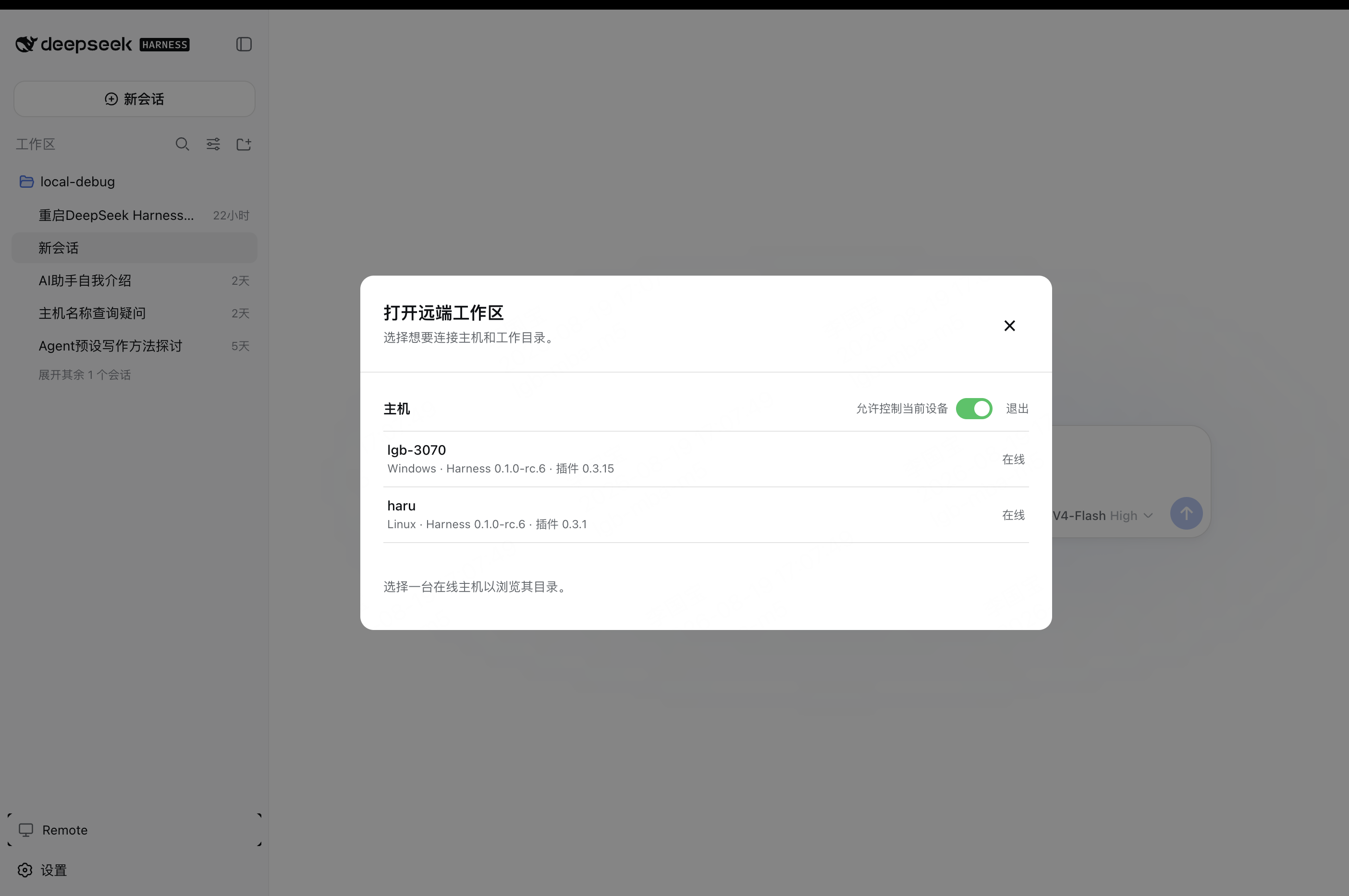
Enable Allow control of this device in Remote settings to make the current computer available as a Host.
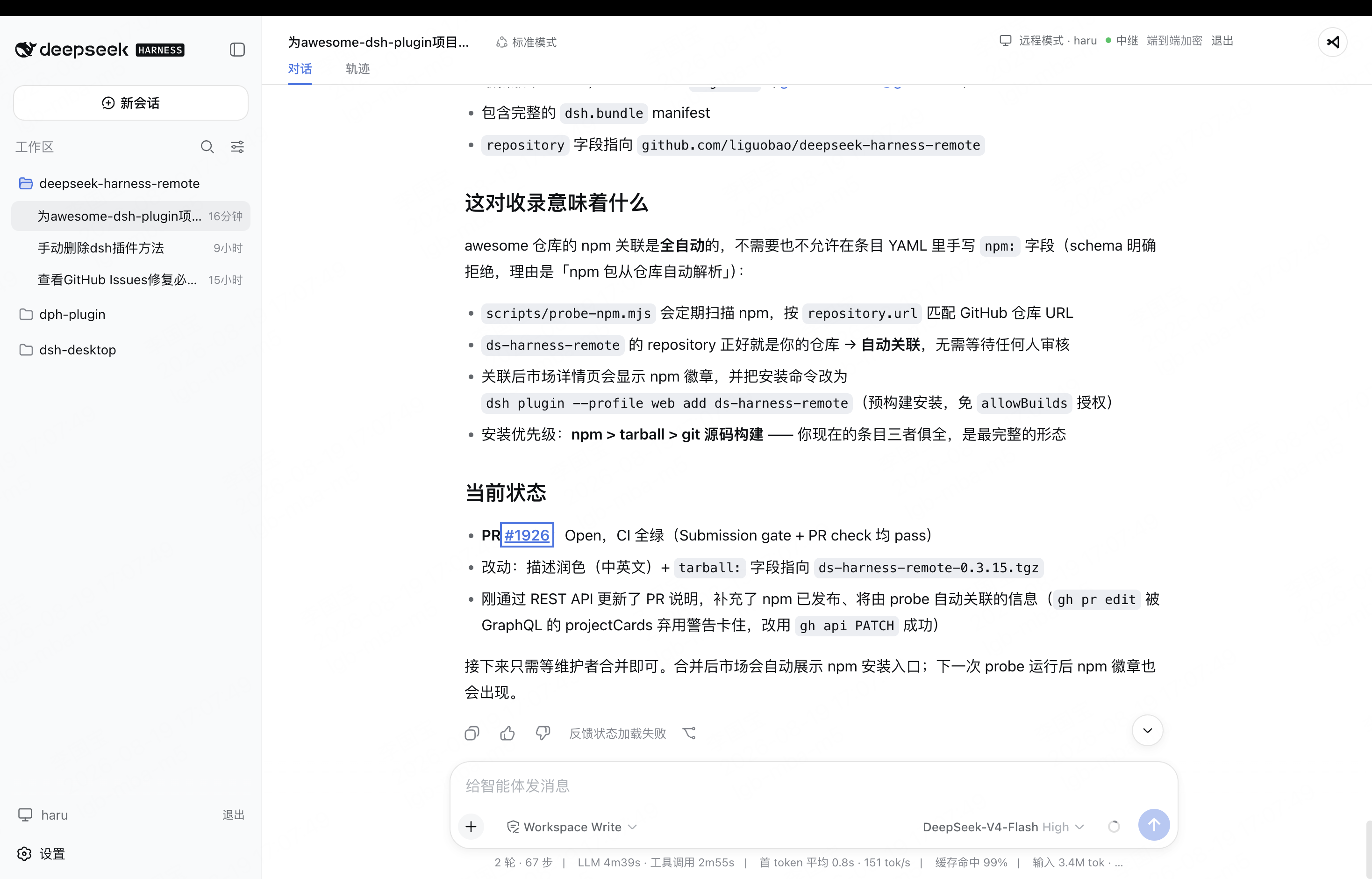
On another computer, select an online Host and open one of its workspaces.
The workspace opens in the native Harness interface, with the active Host and encrypted connection status shown in the header.
Android
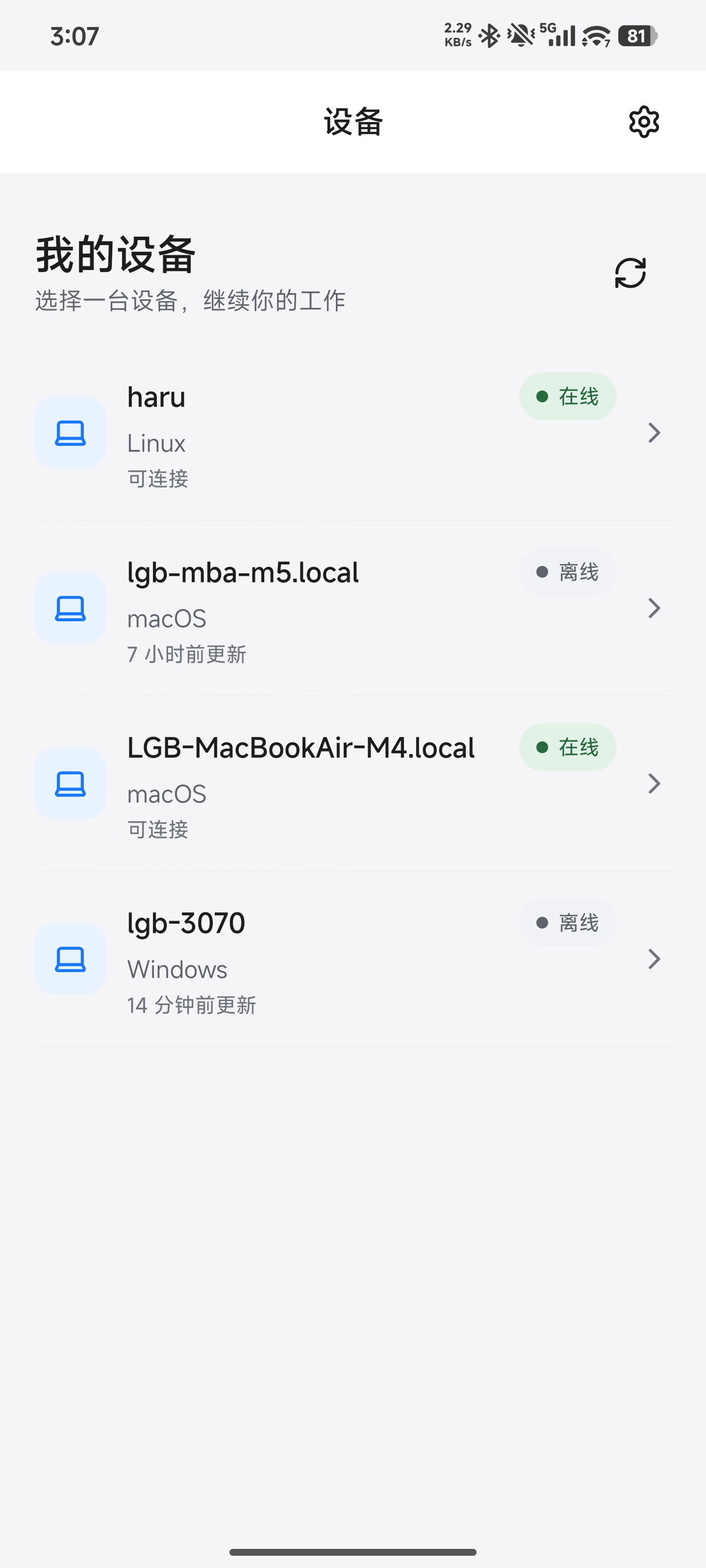
Download the latest Android APK from GitHub Releases.
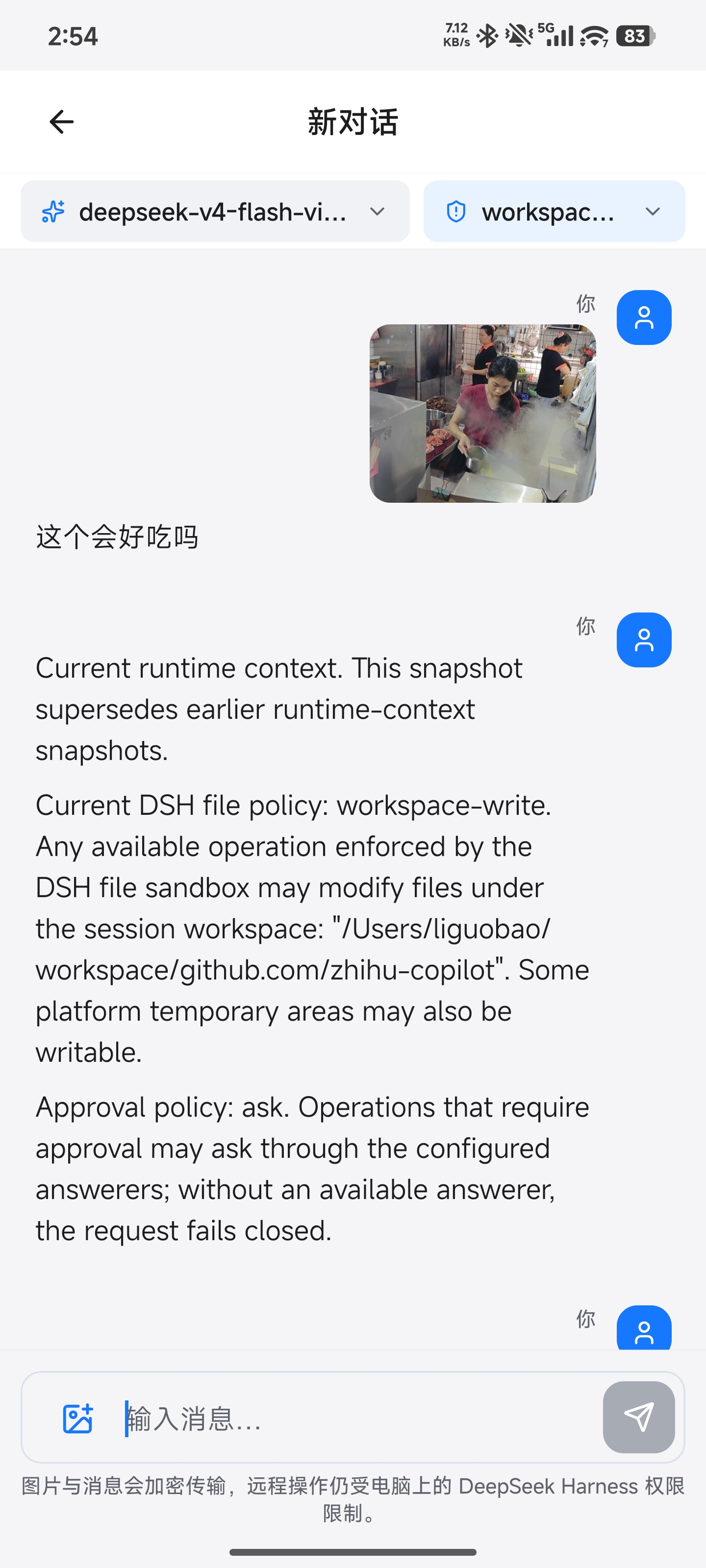
Sign in to the Android client with your existing account, select an available computer, open a workspace, and continue the conversation with text or image prompts. The conversation toolbar also lets you switch the active model and choose any reasoning effort declared by it.
How it works
DSH Desktop / Remote Web / Android
  ↔ authenticated, end-to-end encrypted channel
Remote Plugin on the Host
  ↔ allowlisted native Harness API or optional CodeX App Server domain
Harness sessions/workspaces or CodeX Threads/projects
Experimental Codex virtual workspaces
Codex is an optional domain inside the same Remote Plugin. After connecting to a Host, the normal
Remote workspace picker can also show CodeX working directories. Selecting one switches the existing
DSH Workspace/Session data plane to an in-memory virtual carrier: CodeX threads appear as Sessions,
and their history and live frames are projected into native DSH Session events. The existing DSH
workspace list, conversation renderer, composer, tool cards, and approval UI remain responsible for
the interface; there is no separate CodeX page. The native Session permission control can switch
between Workspace write and explicitly confirmed Full access. CodeX accepts text plus PNG, JPEG,
WebP, or GIF image prompts from Desktop clipboard paste or Android's system image picker over the
bounded encrypted transfer path. General file attachments are not exposed.
Android consumes the same authenticated codex.app.* carrier directly after capability discovery.
It merges the CodeX workspace catalog into its existing workspace screen, keeps those rows read-only,
and reuses the mobile conversation, model, permission, image, tool, interrupt, and approval controls.
The Android state is also an in-memory display projection; it never creates a second CodeX data store.
The live projection covers assistant/reasoning/plan deltas, command and file output, file-change summaries, MCP progress, thread status, and model reroutes. Web Search, Subagent, Image, Compaction, and Review Mode items reuse native tool cards. Large live tool output is kept in a bounded in-memory window, while file patch events expose only paths and change kinds rather than forwarding raw diffs as Workspace file content.
Native Workspace creation starts a Thread in the selected CodeX workspace root and keeps an empty Thread
attached until it becomes visible in the App Server listing. The Host pages History on DSH message
boundaries with beforeSeq / maxMessages before transfer; the Client searches the visible Thread
title, preview, directory, and identifier locally.
This is a presentation adapter, not an import. The virtual Workspace/Session records are never written
to DSH SessionStore, workspace storage, or Harness logs. CodeX App Server remains the source of truth.
project/list is preferred for visible Workspaces; when it is unavailable or has no usable roots, the
exact absolute cwd values already exposed by thread/list become read-only fallback Workspaces. The directory picker
may also start a Thread in a real descendant of those authority roots; lexical and realpath checks reject traversal and
symlink escapes. Create, rename, archive,
prompt, interrupt, and approval actions are routed back to its allowlisted methods. The Host carrier
still uses the existing account membership, pinned Host identity, Noise channel, and adaptive transport.
CodeX is enabled by default and can be disabled from the DeepSeek Remote settings card. Changes to
this setting take effect after restarting DSH. Desktop encrypted cross-machine turn and approval
validation has passed for this experimental release; Android real-device CodeX E2E remains pending.
yamlds-harness-remote:
  codex:
    enabled: false
    binary: codex
binary must resolve to a Codex CLI that provides codex app-server. With the default codex value
on macOS, the Plugin first tries the current ChatGPT app's bundled Codex and then falls back to
PATH; an explicitly configured binary is always used as-is. Existing installs using the former
dsh-remote settings namespace are copied once into ds-harness-remote without deleting the legacy
section.
The Harness Host does not need a public listening port. You can connect from anywhere with internet access, and Remote communicates over a bidirectional end-to-end encrypted channel. It switches the client to the selected Host's native Harness API, so the original workspace, tools, and permission flow remain on that computer. Every settings namespace currently registered by the Host can also be configured remotely through the official Harness settings API. Credential values remain write-only, and Host-local document/open actions are never exposed.
End-to-end encryption
Harness business traffic is encrypted on the Client and decrypted only by the selected Host using
the fixed Noise_IK_25519_ChaChaPoly_SHA256 suite. Account membership and locally pinned device
identity keys must both authorize a connection. The service can route connections and observe
network metadata, but it cannot read session messages, prompts, tool output, workspace paths, or
File Viewer content. See End-to-end encryption for the handshake,
key lifecycle, visible metadata, replay protection, and security limits.
Network and transport
The Host opens outbound connections only; it does not listen on a public port or require router
port forwarding. Remote negotiates LAN -> P2P -> TURN -> Relay, falling back to the encrypted
WebSocket Relay when WebRTC is unavailable or cannot connect. Every path carries the same Noise
ciphertext and keeps the same Host/Client identity boundary. See Network and transport
for the topology, control and data planes, NAT behavior, fallback, reconnect semantics, and current
validation status.
Security
- Session traffic is end-to-end encrypted. The service relays ciphertext without storing session plaintext or device private keys.
- Server membership and the Host's locally pinned peer identity must both authorize a connection.
- Remote does not expose a direct shell, PTY, general tool RPC, or remote desktop. Harness tools may still modify files or run commands on the Host under Harness's normal permission controls.
- The workspace picker lists folders only and returns bounded, read-only directory metadata.
- Optional File Viewer access is limited to authenticated, encrypted range reads and continues to enforce provider root and locator authorization.
- Remote file preview cannot write, delete, upload, execute, or open a path in an external application.
- Codex Remote is enabled by default with a settings toggle to disable it, exposes CodeX
project/listWorkspaces or exactthread/list.cwdfallbacks, and rejects raw shell/process/config App Server methods. - Removing a device revokes its credentials, membership, and active Remote connections.
Compatibility
Breaking change notice: Plugin 0.4.1 removes the earlier experimental
Remote business RPC surface (sessions.*, session.*, permissions.respond,
sync.from). Harness session traffic now only uses the official rc.2
ApiProxy or the alpha Typert Remote Gateway, and this plugin does not provide
an adapter or wire-format translation for the old RPC surface.
Plugin 0.4.6 supports DeepSeek Harness dsh-v0.1.1-rc.2 through the legacy
official ApiProxy, and dsh-v0.1.2-alpha.1–alpha.2 through the
official Typert Remote Gateway. A 0.4.6 Client running rc.2 remains compatible
with older rc.2 Hosts through the legacy capability fallback.
Both Desktop endpoints must use the same Harness transport generation. Plugin
0.4.x does not translate rc.2 and alpha business models: an alpha Client
cannot open an rc.2 Host, and an rc.2 Client cannot open an alpha Host. Mixed
connections are rejected before switching the native UI or mutating a Workspace.
Documentation
- Plugin guide
- dsh-TUI Remote guide
- Documentation index
- End-to-end encryption
- Network and transport
- Remote Protocol
- Development status and roadmap
Links
- Friendly link: dsh-TUI — Remote integration is available; see the dsh-TUI Remote guide.
- Friendly link: LINUX DO
- Friendly link: Cyber Liu Kanshan
Project status and trademarks
This is an independent community project and is not an official DeepSeek product. DeepSeek and related names and marks belong to their respective owners.